
Regular User legacy
Regular users can enter their transaction data to the system given the access privilege by the administrator.
Activate Username
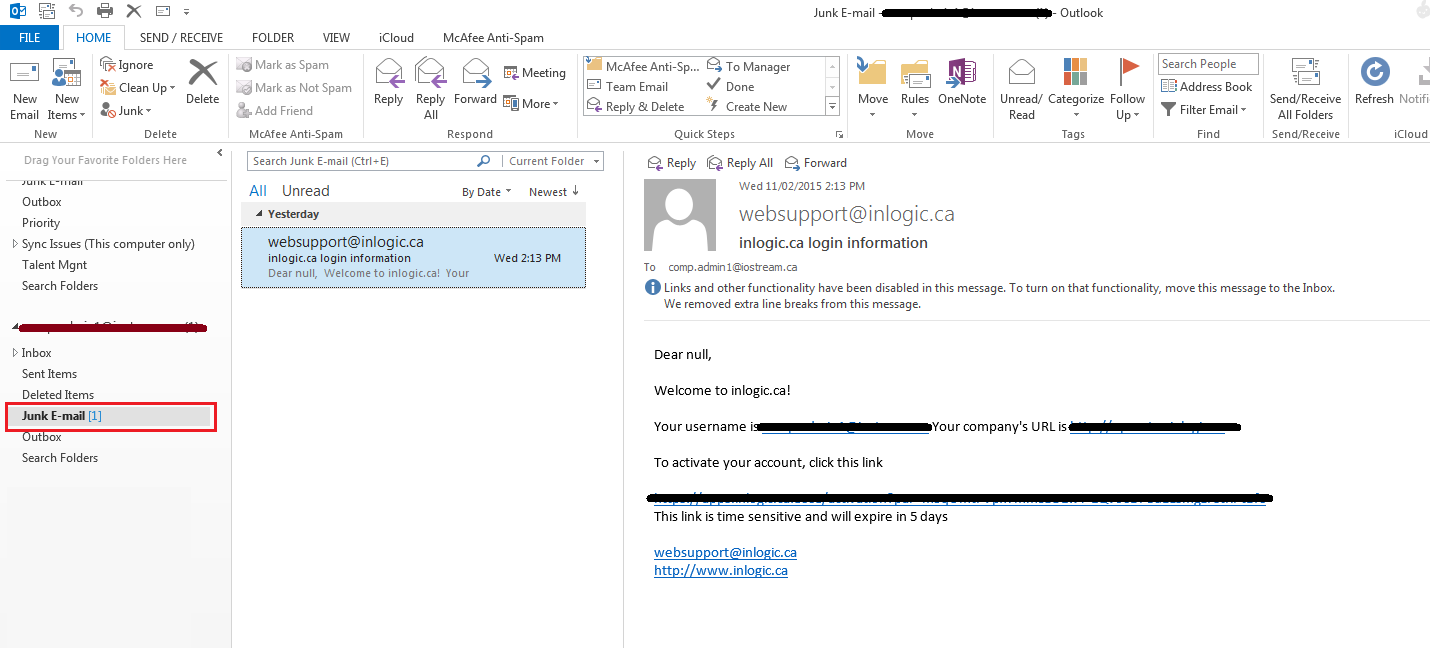
Once the administrator activates regular user accounts, regular users will be notified by email with the activation link. By clicking the activation link, users can verify their email and start using inLOGIC.
TIP
If you are activating the username for the first time, make sure to check the Junk/Spam Mail Box.
First Time Login
When activated, a regular user can login to the system using the following information:
- Company URL – as provided in the email
Example
If your company's name was My Awesome Company then an email was sent to you regarding the login information. The email contains your company's URL which may look something like https://myawesomecompany.inlogic.ca. The text to enter in the Login URL input would be name before .inlogic.ca i.e. myawesomecompany
- Client is the URL provided by the login information email
Note
The entire company URL is expected. e.g. example_company.inlogic.ca would be what you enter under Client
- User or Administrator Email Address
- user name only before
@e.g.prefix_exampleforprefix_example@domain_example.com
- user name only before
- Password
- The password is the same password entered during sign up.
Click Log In to start.
DANGER
Make sure to change password after the initial login for the security purposes, and do not share credentials with others.
Manage Profile
Since regular users are limited to accessing such menus as Configuration and Calculation, the Setting, and some menus are invisible for regular users.

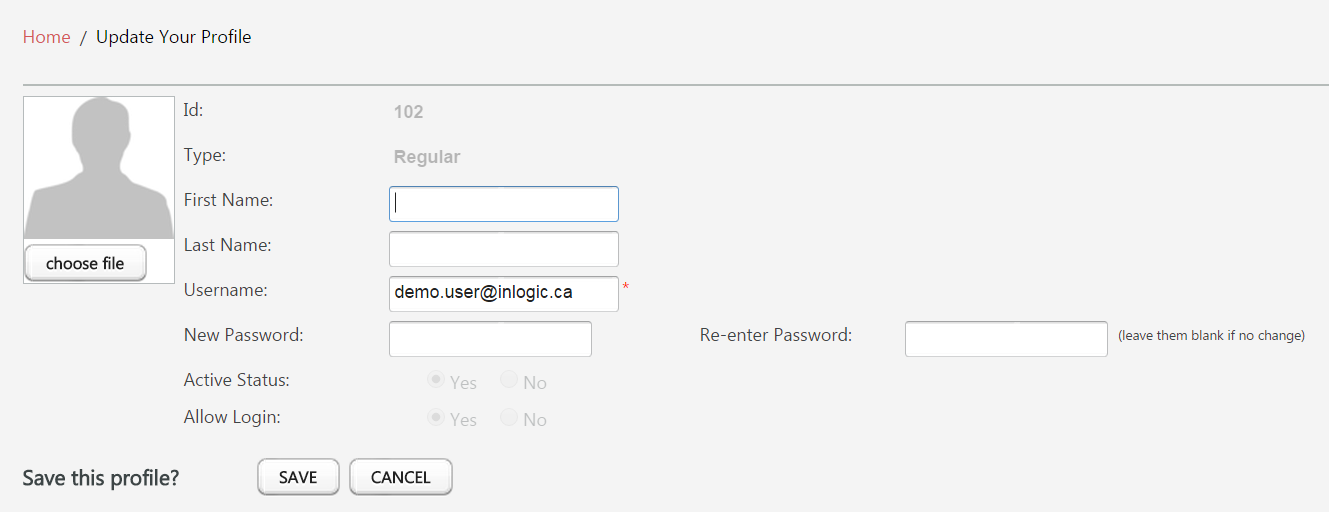
In order to reset password:
- Mouse over the Username at the top menu bar –
company:aaa@company.com - Click Edit Profile
- Type in the new password
- Re-type the new password to confirm
- Click Save button
As soon as you save the changes, you will be automatically signed out, and asked to log back in again with the new password you have just set.
Not only can you change the current password on the Edit Profile page, but you can also upload your profile picture and update your name.
Note
The name change in your personal profile would NOT be reflected to administrator’s view. If your name has been legally changed, and you wish to update how it appears across the system, please contact your Sales Compensation Administrator.
Payee Menu for Regular Users
In order to review the detail about Plans you are participating in, commission or credits you have earned in progress, and any changes made in your personal data. All of this information can be found in one page. Click Payee from the main menu.

Transaction Menu for Regular Users
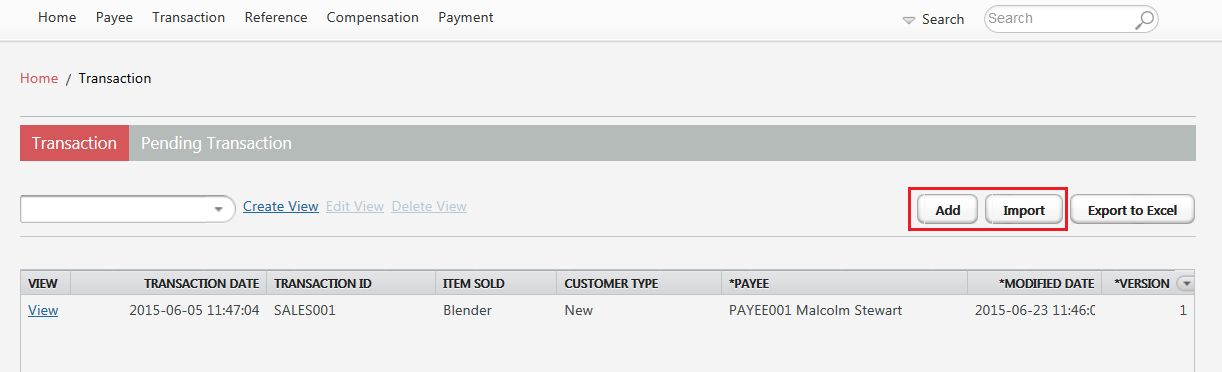
If your organization has chosen a Professional or higher package, you may have been given the Transaction Privilege
which allows you to enter or import your own transaction data to the system. If you Add or Import buttons are not visible, consult your Sales Compensation Administrator.
In order to add a transaction record:
- Click Add button
- Fill out all the necessary fields
- If you have more transactions to enter, click Save and More button, otherwise click Save button
When a regular user enters transaction records, its status remains Pending under Pending Transaction tab. Once the administrator approves one or all of the transactions, approved entries will appear under Transaction tab. 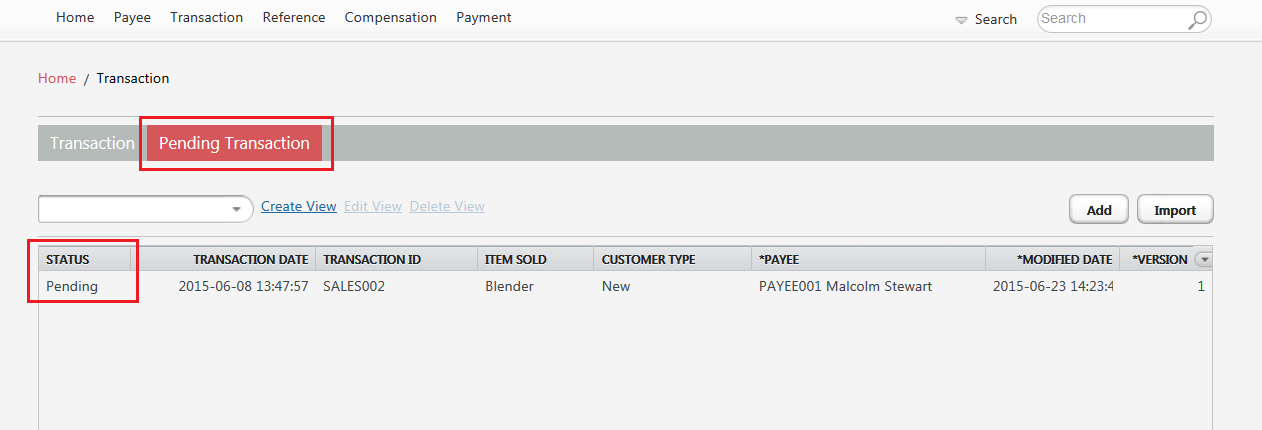
INFO
Only administrator(s) have the authority to approve, reject or delete transaction data submitted by regular users.