
Calculation legacy
The attention to detail matters when it comes to the calculations. We took this seriously, and built a robust system that can yield the accurate results "on time."
Running a Calculation
When you are all set by creating a package and assigning payees, you are good to go and run a calculation. In order to run a calculation,
- Click Calculation from the top menu bar
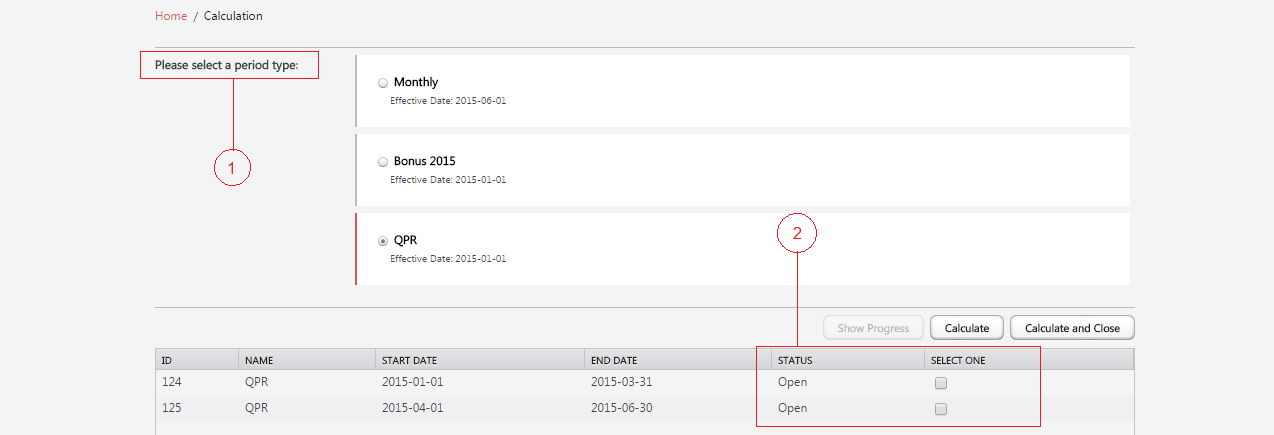
1. Select the Period Type
If you are a Standard or higher plan user, you should be able to create multiple compensation calculation periods. When there are multiple periods, select the period that you want to run a calculation on.
2. Select the Period
The periods that are open to calculation will be listed when you select the Period Type. As long as its Status is Open you can keep running a calculation. The period will be closed only when you choose to Calculate and Close. When a period is selected, regardless the previous period’s status is Open or Closed, the system will be triggered to calculate all the periods prior to the currently selected period inclusively.
For example, if you select the second quarter, dated from 2015-04-01 to 2015-06-30 (read as YYYY-MM-DD) shown in the image above, the previous quarter will be calculated automatically.
- Click Assign button
- Confirm the range of the period, and click Yes button
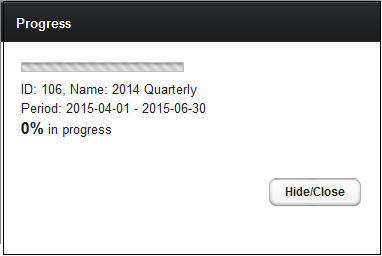
While the calculation is in progress, you can Hide/Close the window
- Click Show Progress button to re-open the progress bar
- When the progress reaches
100%click OK button to close the window
View Results
The outcomes can be reviewed in the Summary pages. There are two types of Summary View: Plan Summary and Payee Summary.